Three image-translation examples
English to Spanish, checked September 9, 2026. These original synthetic images contain no personal information. OCR matched all ten source lines, including the two prices, capacity and batch code.
The reference run used Tesseract.js 7 in Node and the live Fitabyte translation API. The PNGs use the same text-placement function as this tool, rendered with a server canvas adapter. They are reference outputs; browser fonts and provider responses can differ. View measurements and method.
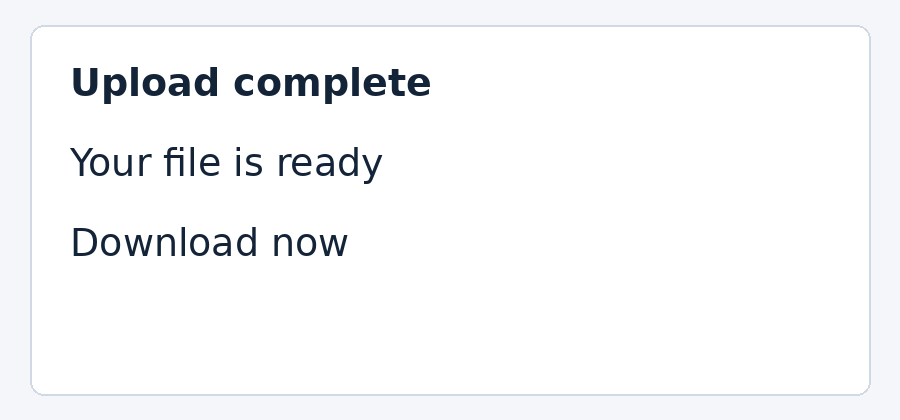
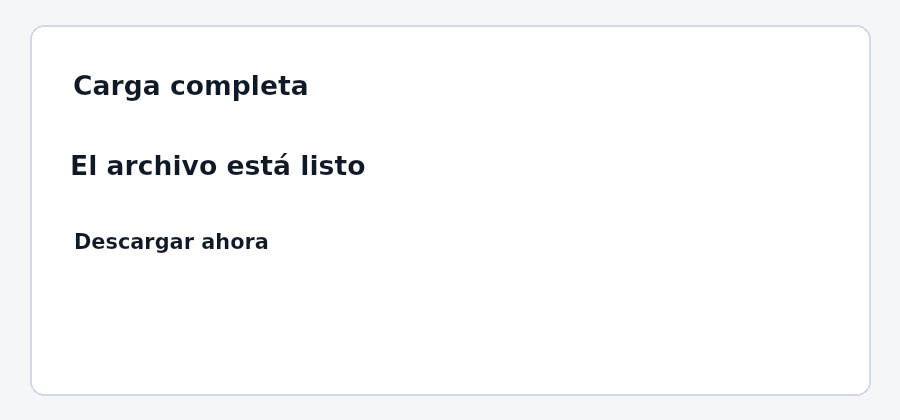
Screenshot-style notice
| OCR source | Translation returned |
|---|---|
| Upload complete | Carga completa |
| Your file is ready | El archivo está listo |
| Download now | Descargar ahora |
OCR matched all three source lines. Translation used complete Spanish phrases; compare the different text lengths in the same boxes.
Download source PNG · Download translated reference · Load this image in the translator
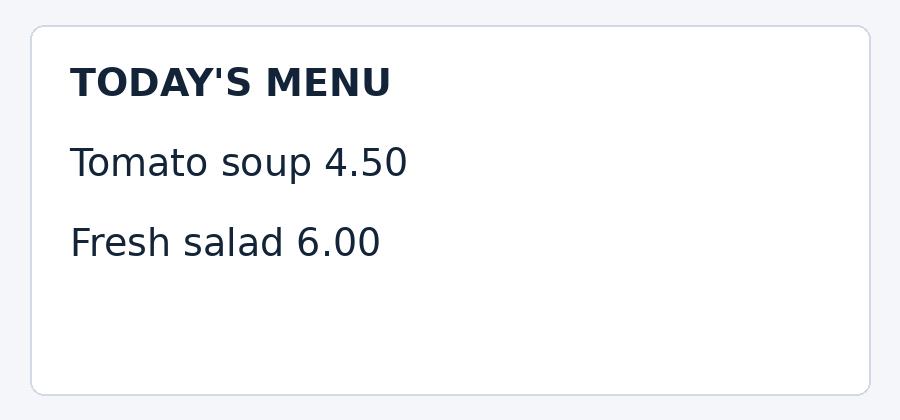
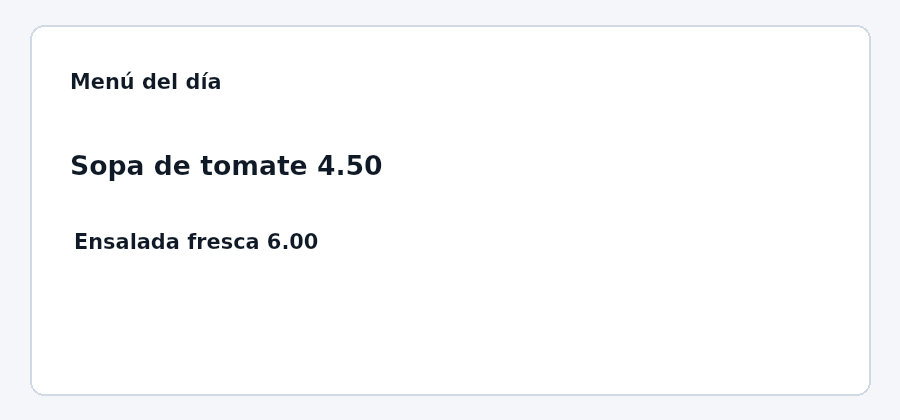
Fictional menu
| OCR source | Translation returned |
|---|---|
| TODAY'S MENU | Menú del día |
| Tomato soup 4.50 | Sopa de tomate 4.50 |
| Fresh salad 6.00 | Ensalada fresca 6.00 |
OCR preserved both prices; the translation kept 4.50 and 6.00. The title became “Menú del día”.
Download source PNG · Download translated reference · Load this image in the translator
Fictional storage label
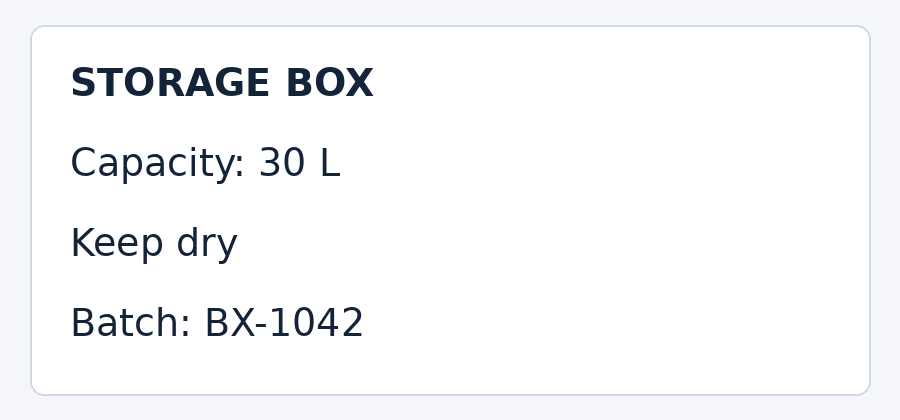
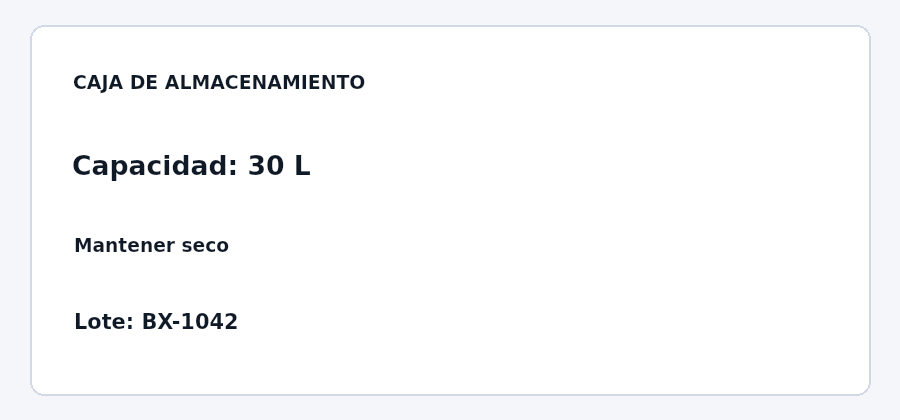
| OCR source | Translation returned |
|---|---|
| STORAGE BOX | CAJA DE ALMACENAMIENTO |
| Capacity: 30 L | Capacidad: 30 L |
| Keep dry | Mantener seco |
| Batch: BX-1042 | Lote: BX-1042 |
OCR preserved the capacity, unit and batch code. The longer Spanish title uses smaller lettering inside the original title box.
Download source PNG · Download translated reference · Load this image in the translator
What these examples reveal
Translation length affects readability even when OCR is correct. The storage-label heading expands to “CAJA DE ALMACENAMIENTO”, so it is reduced to fit the original box. The tool paints a white area over recognized text; it does not reconstruct the background underneath. Review both the text table and the image before downloading.
These clean printed samples do not test glare, curved packaging, handwriting or every language pair. Six source OCR languages and fourteen target languages are available in the selectors; only English to Spanish was checked in this record.
Image translation has two separate accuracy stages. OCR first converts pixels into characters. Translation then interprets those characters in context. If OCR reads ‘15.00’ as ‘IS.OO’ or mistakes a product name for an ordinary word, even a strong translation model receives the wrong source.
Prepare the screenshot for recognition
- Use the original screenshot instead of a compressed copy from a messaging app.
- Crop unrelated panels, ads, or decorative areas.
- Keep text upright and avoid perspective distortion.
- Do not enlarge a tiny screenshot with aggressive sharpening; capture a higher-resolution source if possible.
- Prefer strong contrast between text and background.
- Select the known source language when the tool offers that choice.
Review OCR before you trust the translation
| Content | Common OCR problem | Review method |
|---|---|---|
| Names | Converted into similar common words | Compare letter by letter |
| Prices | Decimal marks or currency symbols missed | Verify every digit and symbol |
| Dates | Day/month order or separators misread | Compare with source context |
| Product codes | O/0, I/1, S/5 confusion | Treat as exact strings, not prose |
| URLs | Punctuation omitted | Do not rely on OCR for a clickable address without checking |
Crop for privacy as well as accuracy
If the screenshot contains private messages, account details, or unrelated names, crop to the smallest useful region. For details that must remain visible in context but not readable, use Privacy Blur on the final shareable version.
Open Image Translator, inspect recognized text, choose the target language, and then review names, numbers, line breaks, and visual placement in the downloaded result. The broader image translation guide explains the full workflow.