Three image-translation examples
English to Spanish, checked September 9, 2026. These original synthetic images contain no personal information. OCR matched all ten source lines, including the two prices, capacity and batch code.
The reference run used Tesseract.js 7 in Node and the live Fitabyte translation API. The PNGs use the same text-placement function as this tool, rendered with a server canvas adapter. They are reference outputs; browser fonts and provider responses can differ. View measurements and method.
Screenshot-style notice
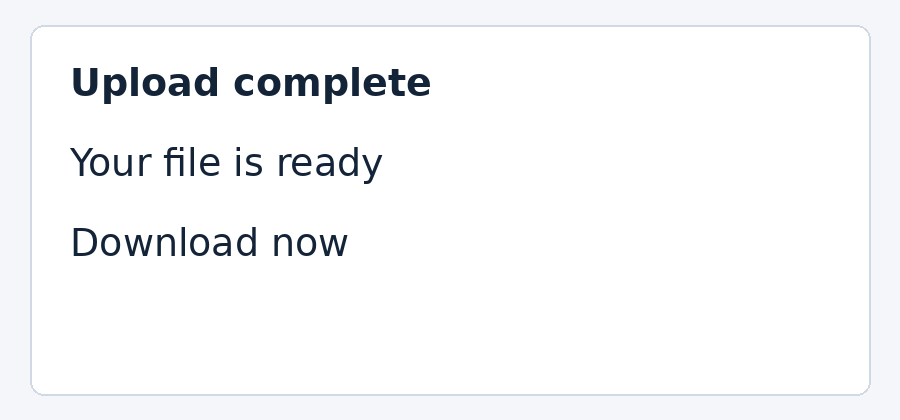
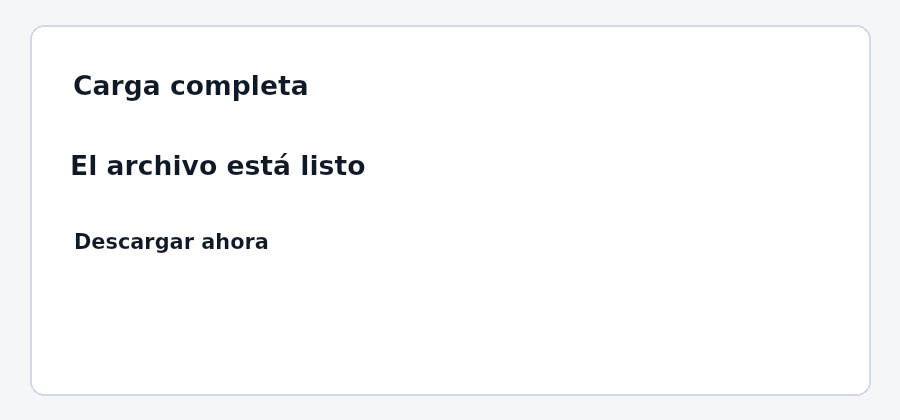
| OCR source | Translation returned |
|---|---|
| Upload complete | Carga completa |
| Your file is ready | El archivo está listo |
| Download now | Descargar ahora |
OCR matched all three source lines. Translation used complete Spanish phrases; compare the different text lengths in the same boxes.
Download source PNG · Download translated reference · Load this image in the translator
Fictional menu
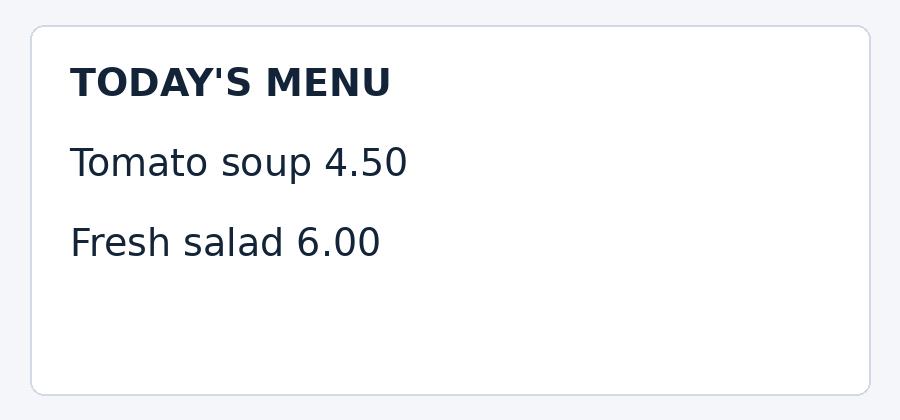
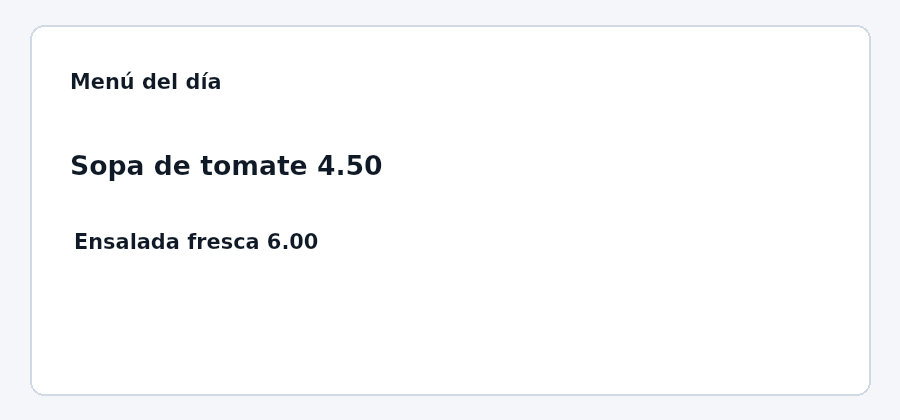
| OCR source | Translation returned |
|---|---|
| TODAY'S MENU | Menú del día |
| Tomato soup 4.50 | Sopa de tomate 4.50 |
| Fresh salad 6.00 | Ensalada fresca 6.00 |
OCR preserved both prices; the translation kept 4.50 and 6.00. The title became “Menú del día”.
Download source PNG · Download translated reference · Load this image in the translator
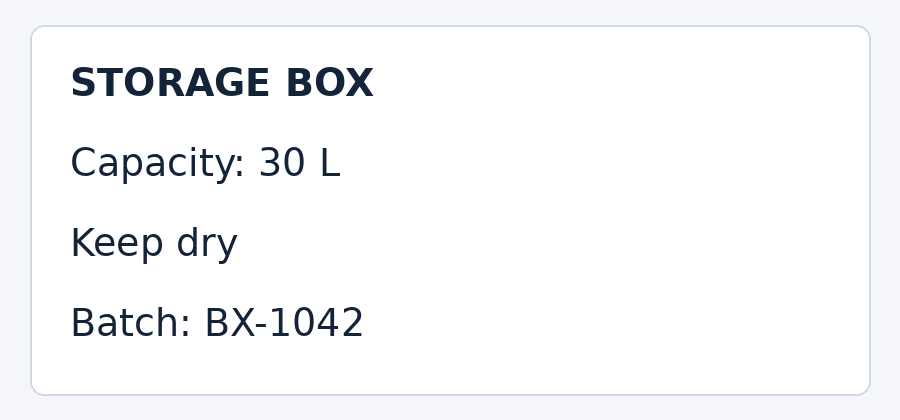
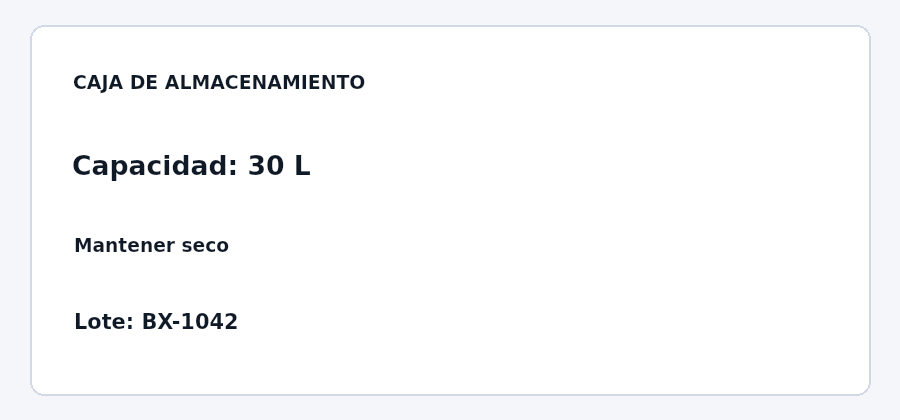
Fictional storage label
| OCR source | Translation returned |
|---|---|
| STORAGE BOX | CAJA DE ALMACENAMIENTO |
| Capacity: 30 L | Capacidad: 30 L |
| Keep dry | Mantener seco |
| Batch: BX-1042 | Lote: BX-1042 |
OCR preserved the capacity, unit and batch code. The longer Spanish title uses smaller lettering inside the original title box.
Download source PNG · Download translated reference · Load this image in the translator
What these examples reveal
Translation length affects readability even when OCR is correct. The storage-label heading expands to “CAJA DE ALMACENAMIENTO”, so it is reduced to fit the original box. The tool paints a white area over recognized text; it does not reconstruct the background underneath. Review both the text table and the image before downloading.
These clean printed samples do not test glare, curved packaging, handwriting or every language pair. Six source OCR languages and fourteen target languages are available in the selectors; only English to Spanish was checked in this record.
Text inside an image is not directly editable like text in a document. An image translator must first recognize the characters, then determine the source language, translate the meaning, and finally place the translated text back into the visual. Each stage can introduce errors, so the best result comes from a clean source and a deliberate review.
Fitabyte Image Translator combines optical character recognition (OCR) with translation and positioned output. It is useful for screenshots, menus, signs, product graphics, instructions, labels, and simple document images. Important legal, medical, financial, or safety-critical material still needs qualified human review.
How image translation works
- Image preparationThe tool receives a photo or screenshot. Rotation, blur, glare, low contrast, and tiny text affect every later step.
- Text detectionOCR identifies regions that appear to contain characters and converts pixels into machine-readable text.
- Language interpretationThe source language is selected or detected and the recognized phrases are translated into the requested language.
- Layout reconstructionTranslated text is placed near the original text regions. Longer or shorter translations may need different font sizing or line breaks.
- Human reviewA person checks names, numbers, context, tone, and visual fit before the result is shared or published.
Prepare the image for better recognition
- Use the original image rather than a screenshot of a screenshot.
- Crop unrelated areas so the tool can focus on the text you need.
- Rotate the image until text lines are horizontal when possible.
- Avoid glare, reflections, shadows, motion blur, and extreme perspective.
- Keep enough resolution for small characters and punctuation to remain distinct.
- Use a high-contrast source; light gray text on a patterned background is difficult for OCR.
- Do not compress the image aggressively before recognition.
How to translate a photo or screenshot
- Open Image TranslatorGo to Image Translator and select the image containing the text.
- Choose the language pairSelect the known source language when possible and the language you want for the result. Explicit selection can reduce ambiguity.
- Run text recognitionLet the tool identify text regions. Review the extracted lines before relying on the translation.
- Translate and inspectCheck meaning, tone, names, numbers, dates, and units. Re-run from a cleaner crop if recognition is weak.
- Review the visual layoutConfirm translated text is not clipped, too small, or covering an important graphic. Longer languages may require extra space.
- Download a new copySave the translated image separately so the original remains available for comparison and future correction.
Translation review checklist
| Check | What can go wrong | What to do |
|---|---|---|
| Names | Translated or misspelled as ordinary words | Compare with the source and preserve official spelling |
| Numbers | Decimal marks, dates, prices, or codes change | Verify every digit and symbol |
| Units | Meaning changes between metric and imperial conventions | Keep the original unit or convert deliberately |
| Tone | Formal text becomes casual or marketing language sounds unnatural | Rewrite for the audience, not only word-for-word accuracy |
| Line breaks | Words clip or become too small | Adjust the layout or create a new text area |
| Context | A short word has several meanings | Read surrounding text and choose the meaning that fits |
Images that are difficult to translate
- Curved text on packaging, bottles, signs, or clothing.
- Handwriting, decorative scripts, and tightly connected characters.
- Very small text, low-resolution screenshots, or images already heavily compressed.
- Glowing text, outlines, shadows, gradients, and patterned backgrounds.
- Tables with merged cells or text running in multiple directions.
- Mixed languages and product codes on the same line.
- Vertical writing or text photographed at a sharp angle.
For a difficult photo, make a tighter crop, correct the angle, and improve contrast before trying again. If the file format itself will not open, use File Opener first. If the input is a modern iPhone photo, the HEIC guide explains compatible ways to open or convert it.
Consider privacy before translating
Images can contain identity documents, addresses, medical details, financial information, private conversations, or faces. Read the tool’s privacy explanation and remove unrelated personal information before processing. If only part of a screenshot needs translation, crop to that region. Use Privacy Blur on details that should not appear in the final shared image.
Automated translation is a strong aid for understanding and first drafts. It should not be treated as certified translation. Contracts, immigration material, prescriptions, diagnoses, safety labels, and official filings require a qualified professional when accuracy carries real consequences.