Remove Image Metadata
Create a fresh PNG without source EXIF metadata. Remove embedded camera and location tags by rebuilding the image locally.
Let’s remove image metadata.
Add image files to get started.
Three steps. One less task.
- 01
Choose your file, or drag it into the workspace.
- 02
Create a clean PNG copy of your image.
- 03
Download the result and check it before sharing.
Good to know
Re-encoding discards source EXIF tags, including typical camera and GPS fields. It does not hide text, faces or location clues visible in the picture. Use Privacy Blur for visible details.
Remove EXIF metadata before sharing an image
A photo can contain information that is not visible in the picture, such as a camera model, capture date or GPS coordinates. This tool decodes the picture and saves a fresh PNG without copying the source EXIF fields. Your original file stays unchanged.
Metadata removal does not cover a street sign, face, address or username visible in the picture. Crop or cover those details separately with Privacy Blur. The PNG may be larger than the original JPEG, so use Convert image or Compress image afterward if you also need a smaller delivery file.
See what changes in the downloaded copy
The sample JPG contains the EXIF Artist value “Fitabyte sample author”. The actual image cleanup tool exported a 480 × 240 PNG with no EXIF chunk and without that source value.
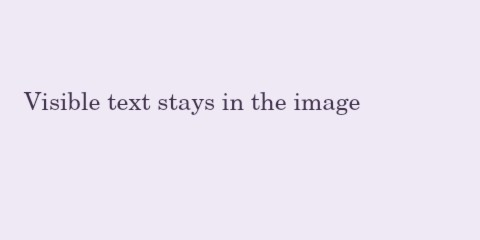
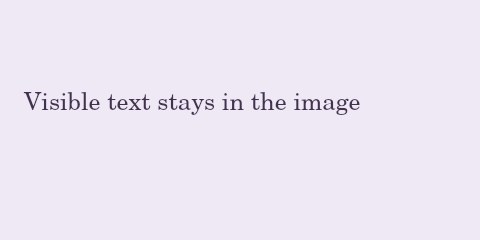
Synthetic reference checked on 26 October 2026 using the actual processor with a native canvas adapter. This demonstrates source metadata removal; it is not proof that visible information is anonymous.
A few things you might ask.
Does this remove a photo's GPS location?
GPS coordinates stored in source EXIF metadata are not copied into the new PNG. Visible landmarks and location labels remain in the image. Review both the picture and the downloaded file's properties before sharing.
Why is the cleaned image a PNG?
This tool creates a fresh PNG from the decoded pixels. It is not an in-place metadata editor and does not preserve the original JPEG or HEIC container. Browser decoding and color handling can also affect the exported picture.
Will a screenshot containing my name become anonymous?
No. Text that is visible in a screenshot remains visible. Use Privacy Blur to cover the name and other private regions, then inspect the exported image. Clearing metadata alone is not redaction.
Are my files uploaded to a server?
This tool processes files on your device. Moving a file between Fitabyte tools uses a one-use browser handoff that expires after 10 minutes; abandoned handoffs are cleared on your next visit. Your original stays unchanged.
Can I use this tool on my phone?
Use a current browser and keep the tab open during processing. Available memory and processing speed depend on your device; start with a smaller file for large PDFs or video.